MCGS and PLC equipment connection
2017-04-25
In the MCGS system, the device window is responsible for establishing the connection between the system and the external hardware device, so that the MCGS can read the data from the external equipment and control the working status of the external equipment to realize the real-time monitoring of the corresponding industrial process. So MCGS and PLC equipment connection is completed through the device window, the specific operation is as follows:
When we open the MCGS configuration environment, a new MCGS project, in the user editing window will appear in Figure 1, the table window.
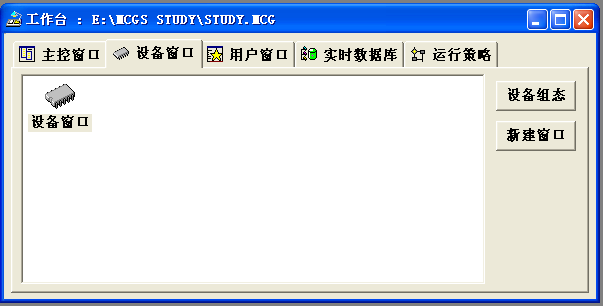
Mouse click on the "Device Window" tab in the window, double-click the "Device Window" icon or select the device window icon. Click the Device Configuration button (if there is no device window icon, click the New Window button) to open the device configuration Window, the device configuration, that is, to complete the MCGS and external hardware devices, as shown in Figure 2:
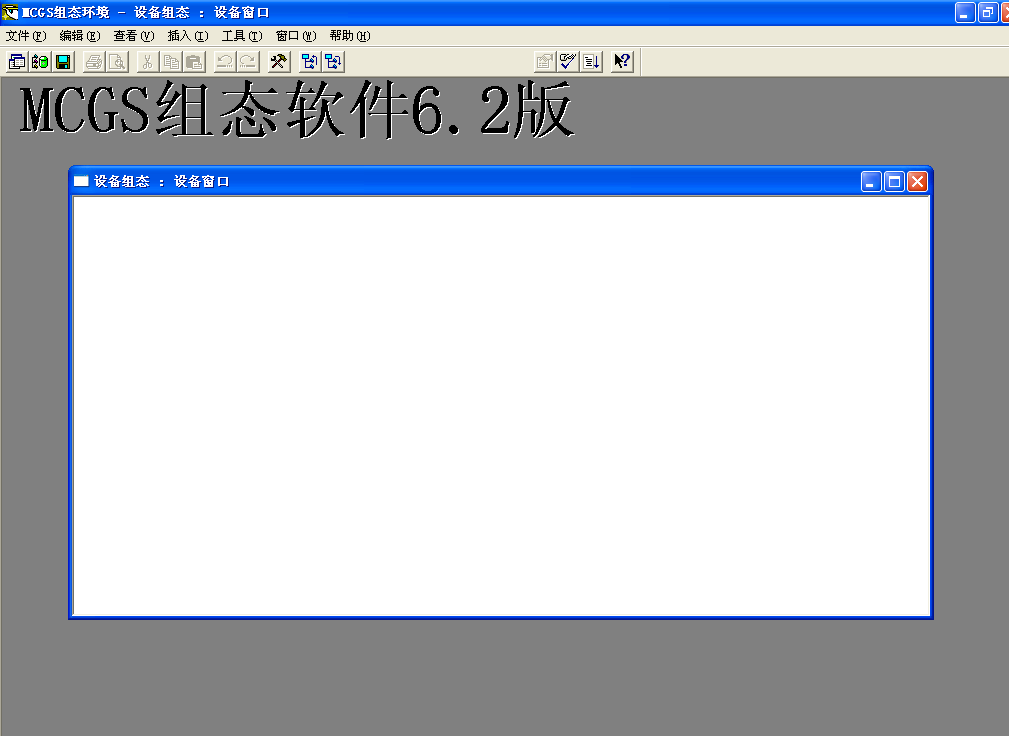
Click the toolbar button on the toolbar will pop up as shown in Figure 3, the device toolbox window,
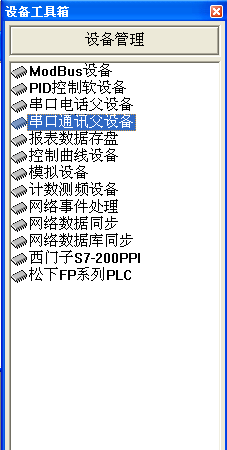
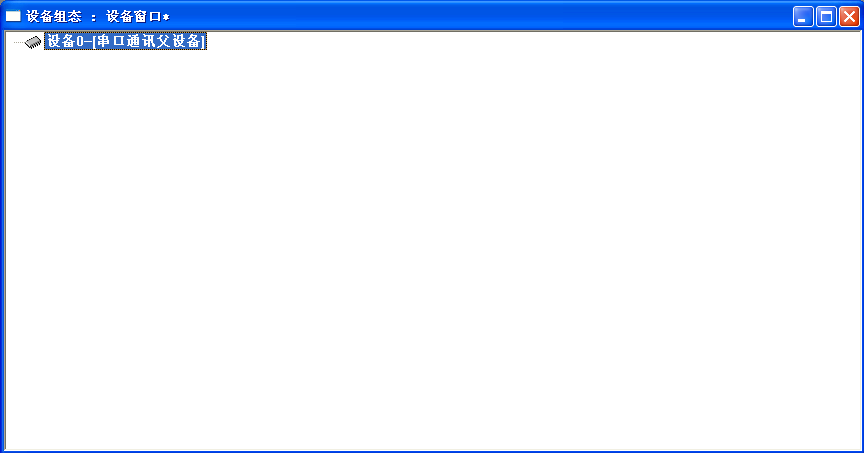
It should be noted that in the MCGS PLC equipment is as a sub-device hanging in the serial port under the parent device, so the device configuration window to add PLC equipment, you must first add a serial port parent device, when the direct use of serial communication , We add the "serial communication parent device", so double-click the serial communication between the parent device, in the device configuration window to add a serial communication device, as shown in Figure 4:
Now you can add the PLC device we need to the device configuration window. If the required device does not appear in the device toolbox, press the "Device Management" button and select the "Device Management" button in the pop-up device management dialog box. And then double-click it can be added to the device toolbox, as shown in Figure 5:
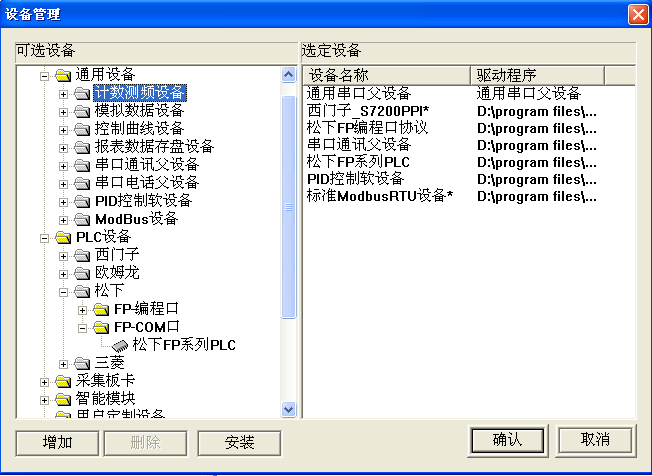
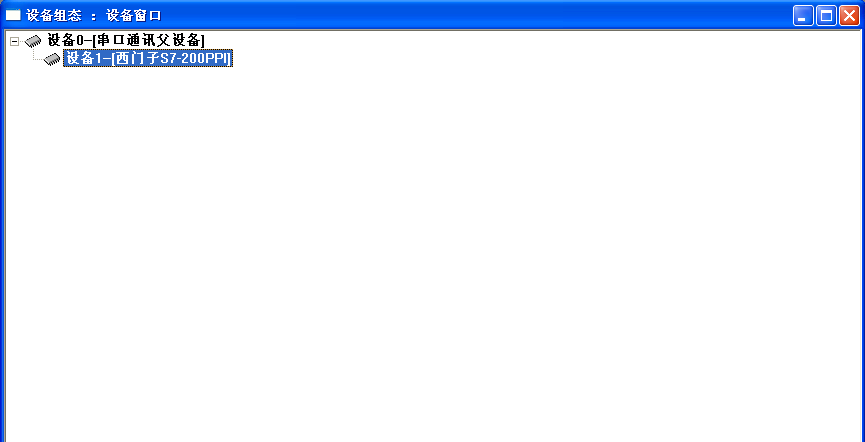
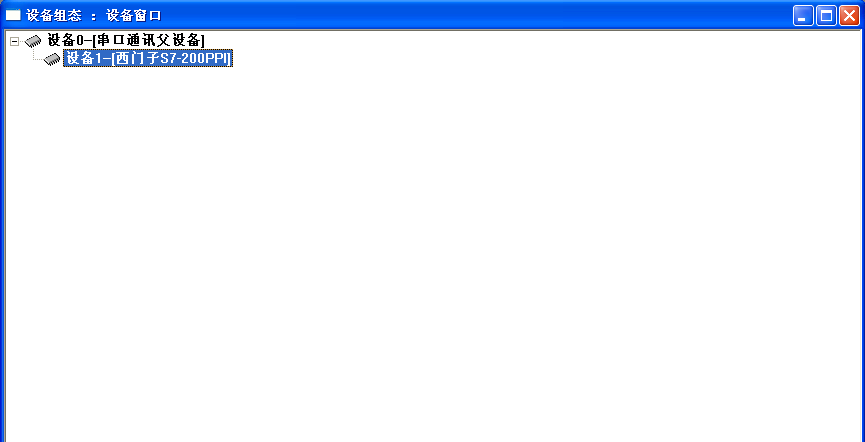
And then in the device toolbox double-click the required device, you can add it to the device configuration window under the serial port parent device, as shown in Figure 6.
Double-click the device 0-serial communication parent device, in the pop-up device properties settings dialog box according to the device used to set the communication protocol used by the communication port, communication baud rate, data bits, parity and stop stop bit , As shown in Figure 7
After setting, click the OK button, thus completing the MCGS and PLC device connection.
Shanghai Fenein Fluid Equipment Engineering Technology Co., Ltd All rights reserved Shanghai ICP prepared 14021247 number Disclaimer